Gemini Now Supports Direct File Generation
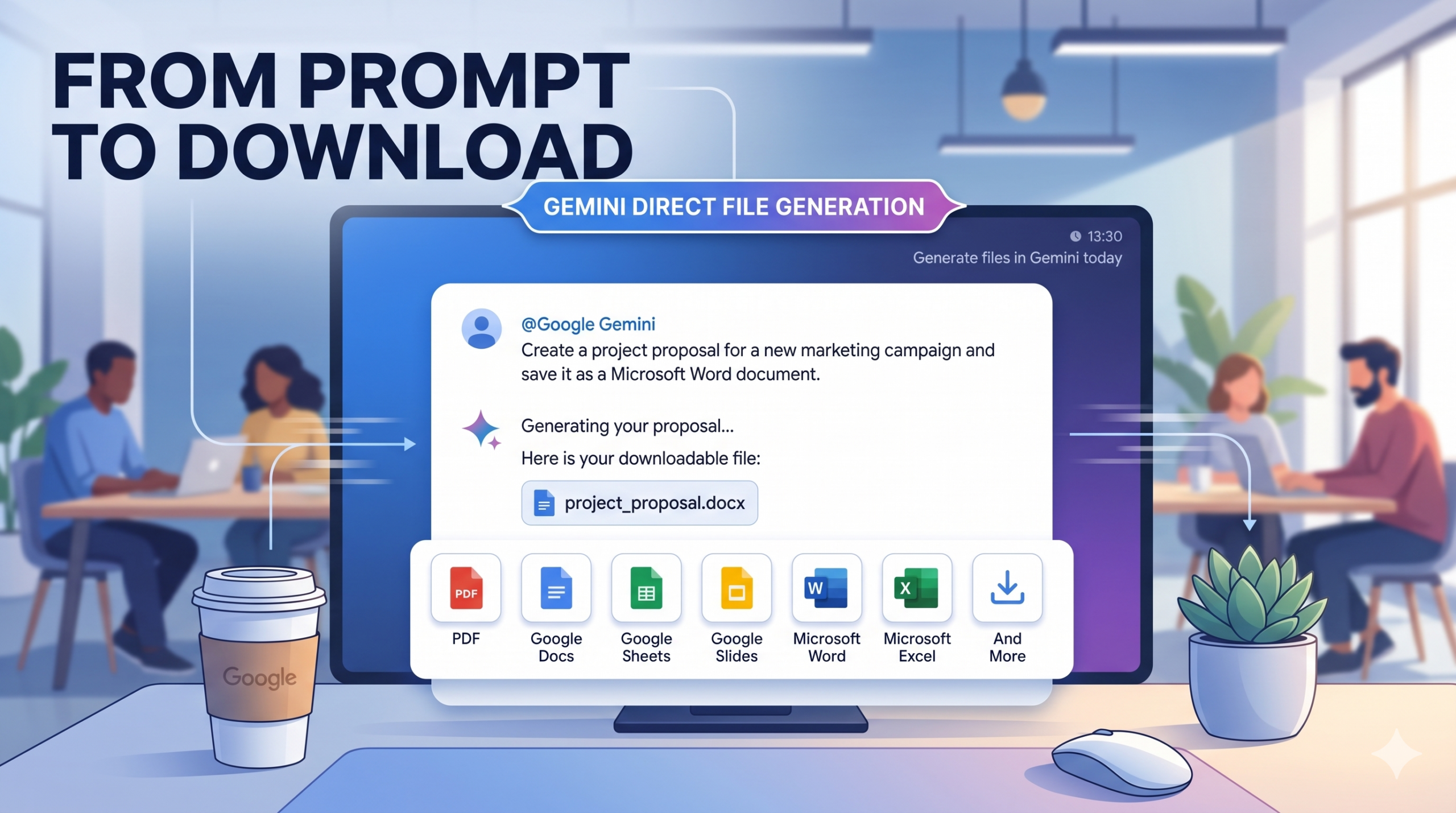
Gemini direct file generation is here. Google has announced a significant update to Gemini, its AI-powered assistant, allowing users to generate downloadable files directly within their chat interface. This new feature streamlines workflows by eliminating the need for manual copy-pasting or external formatting tools.
A Versatile Range of Formats
Users can now request Gemini to create content in various popular file formats, including:
- PDFs: Ideal for sharing finalized documents and maintaining formatting across different devices.
- Google Workspace Files: Seamless integration with Google Docs, Sheets, and Slides for continued collaboration.
- Microsoft Office Suite: Native support for generating Microsoft Word documents and Excel spreadsheets.
- And More: The update hints at support for additional file types, further expanding Gemini’s utility.
Simplified Workflow
The key advantage of this update is its simplicity. Users no longer need to provide a template or perform complex setups. By simply describing the desired content and specifying the preferred file format in their prompt, Gemini will generate the file, ready for download.
For example, a user could prompt: “Create a project proposal for a new marketing campaign and save it as a Microsoft Word document.” Gemini would then draft the proposal and provide a link to download the completed .docx file.
Enhancing Productivity with AI
This development marks a significant step forward in making AI assistants more practical and integrated into daily tasks. By handling the formatting and file creation process, Gemini allows users to focus on the core creative and analytical aspects of their work. Whether it’s generating reports, drafting correspondence, or organizing data, the ability to create downloadable files directly in chat promises to be a major productivity booster for Gemini users.
1. “How It Works: Step-by-Step”
Tech readers love a “quick start” guide. Breaking down the user journey makes the feature feel accessible immediately.
- The Prompt: How to word your request for the best results.
- The Selection: Choosing between file types (e.g., when to choose .docx vs. a Google Doc).
- The Result: Where the download link appears and how long it remains active.
2. “Use Cases for Professionals”
Give your readers inspiration on how to integrate this into their specific workflows.
- For Data Analysts: Converting a chat-based data analysis into a formatted Excel sheet or CSV instantly.
- For Project Managers: Turning a meeting summary brainstormed with Gemini into a formal PDF project brief.
- For Students/Researchers: Exporting citations or bibliographies directly into a Word document.
3. “The Competitive Landscape”
On a tech blog, context is king. Briefly compare this to other AI tools.
- Gemini vs. ChatGPT: Mention how this compares to ChatGPT’s “Advanced Data Analysis” or file export capabilities.
- The Ecosystem Advantage: Highlight how being “native” to Google Workspace gives Gemini an edge (e.g., the “Save to Drive” button).
4. “Potential Limitations & Security”
A balanced tech article builds trust by addressing the “fine print.”
- Formatting Limits: Note that complex layouts might still require some manual “cleanup” after generation.
- Privacy: A brief mention of how Google handles the data within these generated files.
5. “Verdict: Why This Matters”
A concluding thought on the shift from AI as a “chatbot” to AI as a “workhorse.” This feature marks the transition from AI providing information to AI providing deliverables.